Remove a font from your brand
Remove a font your brand no longer uses. First stop using it in your text styles, then delete it.Before you start
Open the brand from Brands.Steps
-
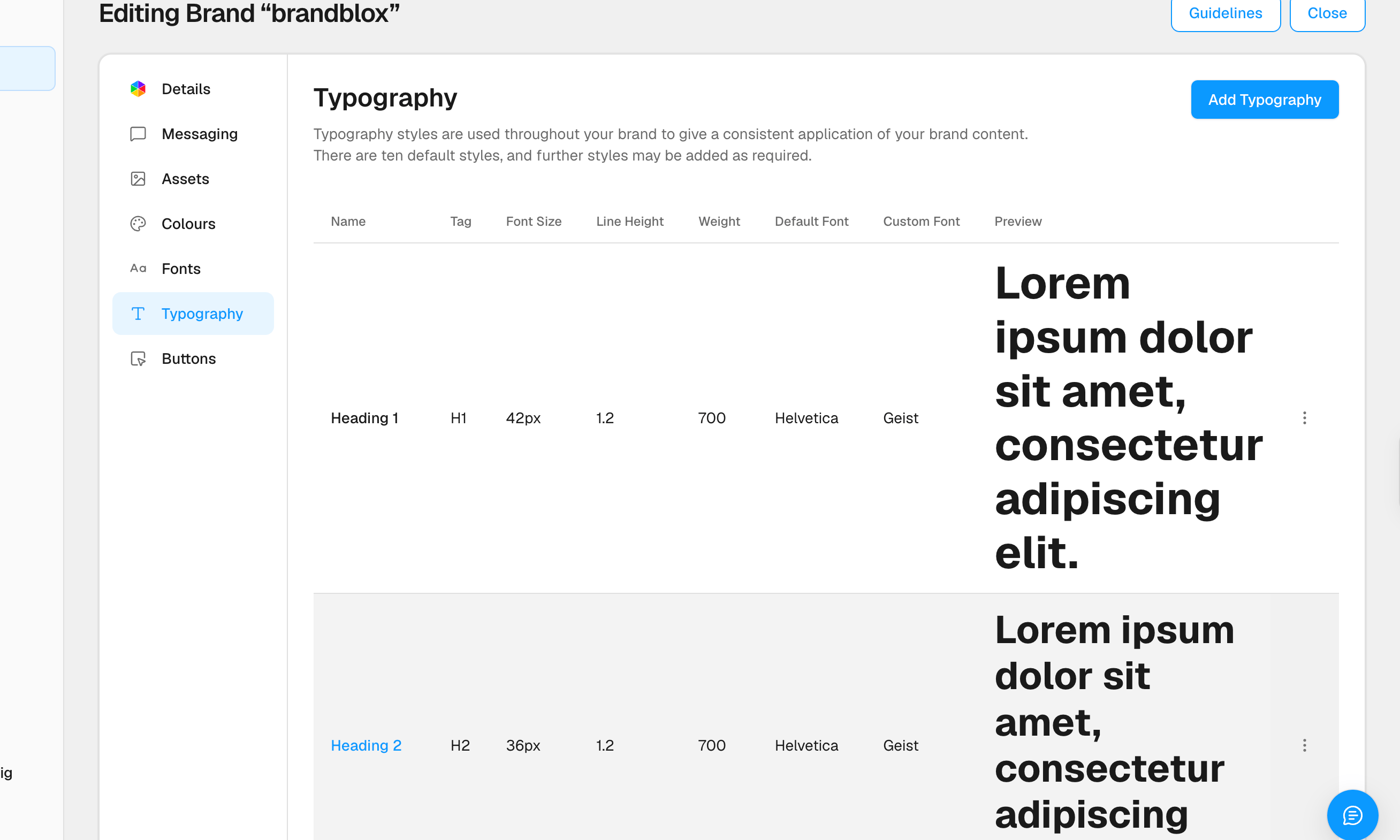
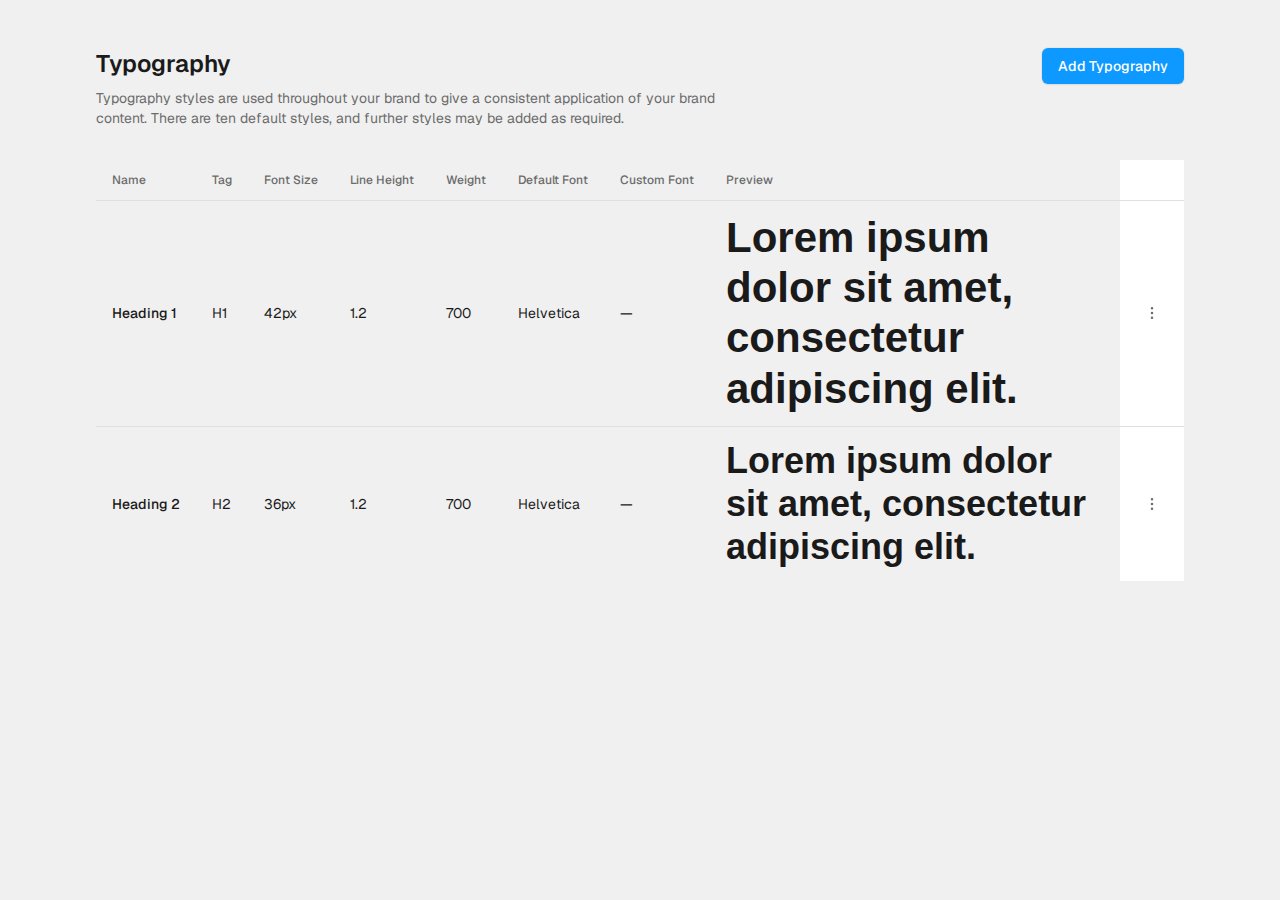
Open the Typography tab. Check the Custom Font column for the font you want to remove.
-
Edit each style that uses the font as its Custom Font or Default Font. Choose a different font, or clear Custom Font.
- Open the Fonts tab.
- Open the ⋯ menu on the font card and choose Delete.
- Confirm.
If you can’t delete it
You’ll see a message such as “This font is assigned to Typography… Unassign it before deleting.” Finish step 2, then try again.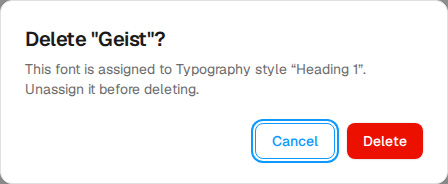
Good to know
- Text styles, buttons and emails that used a removed font use your brand’s Default Font instead.
-
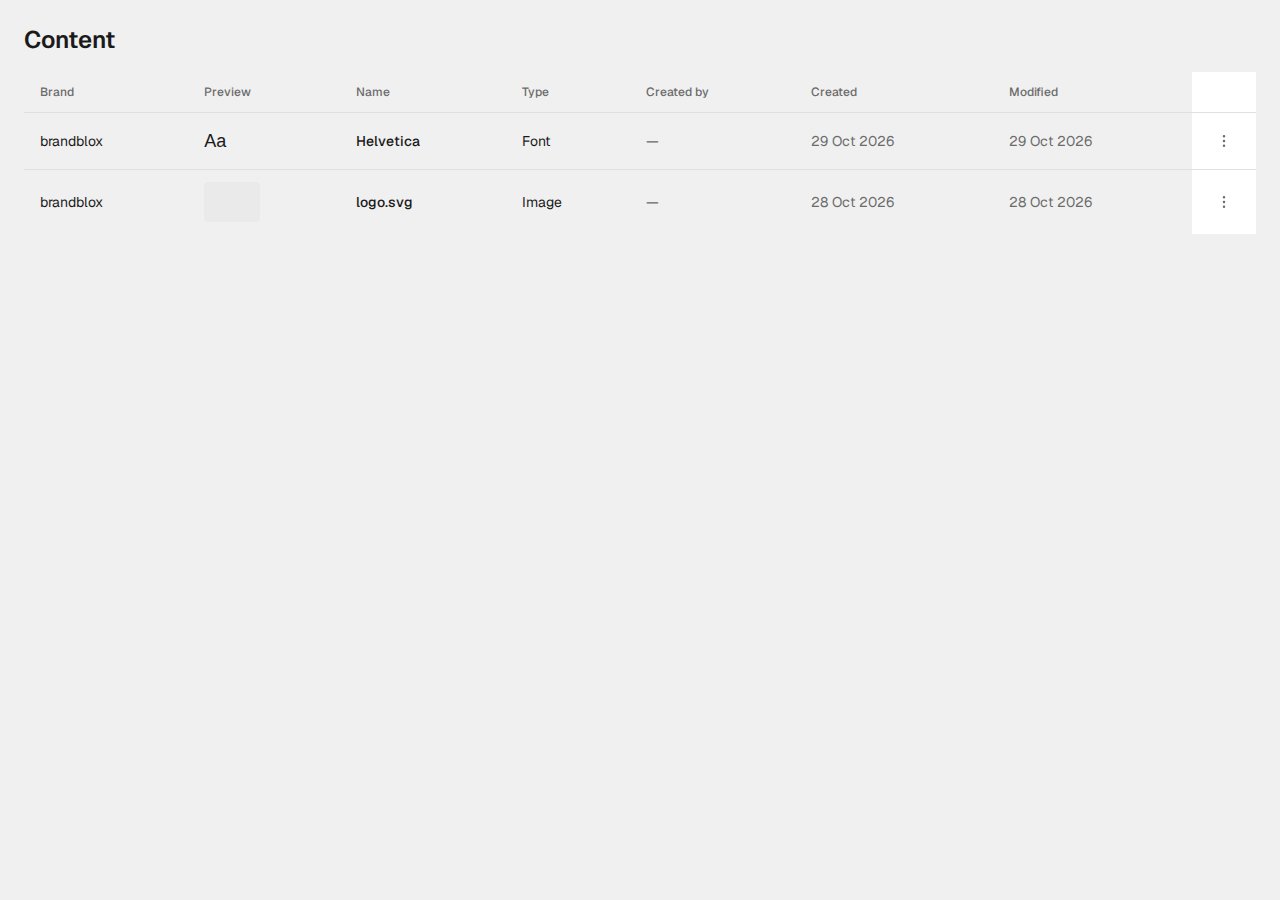
Default fonts, such as Helvetica, also appear in Content as type Font. Deleting one there works the same way.