

Insert Content into an email
Use your saved copy and images in an email instead of retyping or re-uploading them. When you update an item in Content, every email using it updates.Before you start
- Open an email in the builder.
- To insert copy, you need Content on your subscription, or free-plan items left. See Billing.
Insert copy
- Click into a Text component where you want the copy to go.
- In the text toolbar, click Insert content (the document-and-pencil icon).
- Pick an item and confirm.
Choose an image
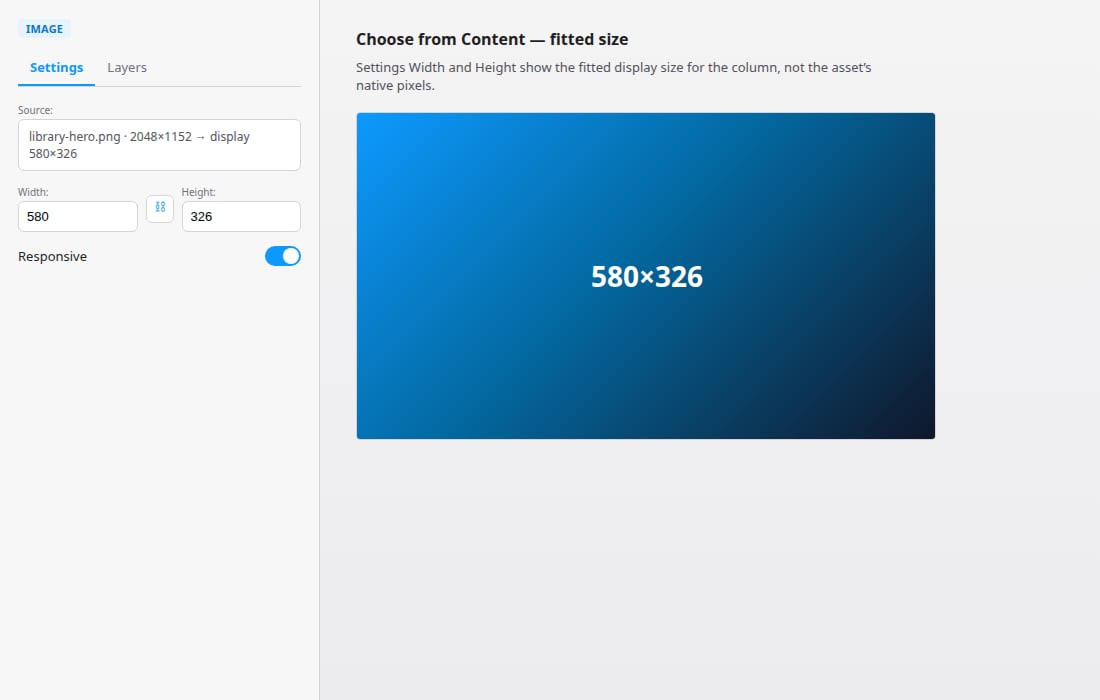
- Select an Image component and open Settings.
- Under Source, click Choose from Content. You’ll see images for this email’s brand.
- Click the image you want.
- Check Width and Height.
Good to know
- You can paste a link to an image hosted elsewhere into Source instead. You don’t need Content on your subscription for that. See Set an Image Source URL.
- Your desktop image is used on mobile too. Set Source (mobile) only when you want a different image or crop on mobile.
- Large images fit the width of the component. Turn on Responsive if you want the image to resize with the screen in your exported email.
- If you’ve used your free items and don’t have Content on your subscription, Insert content shows an upgrade option instead.
- If you can’t click Insert content, the email’s brand has no Content yet. Add some in Content first, or set up Legal and Unsubscribe in Footers.