

Add languages to Content
Keep one copy item for every market. Add each language to the same item, and each language version of your email shows the right words.Before you start
- Have some reusable copy in Content, such as a subject line, call to action or headline.
- English (en) is the starting language unless you change it.
Steps
- Open Content.
- Open the copy item you want to translate, or add new copy.
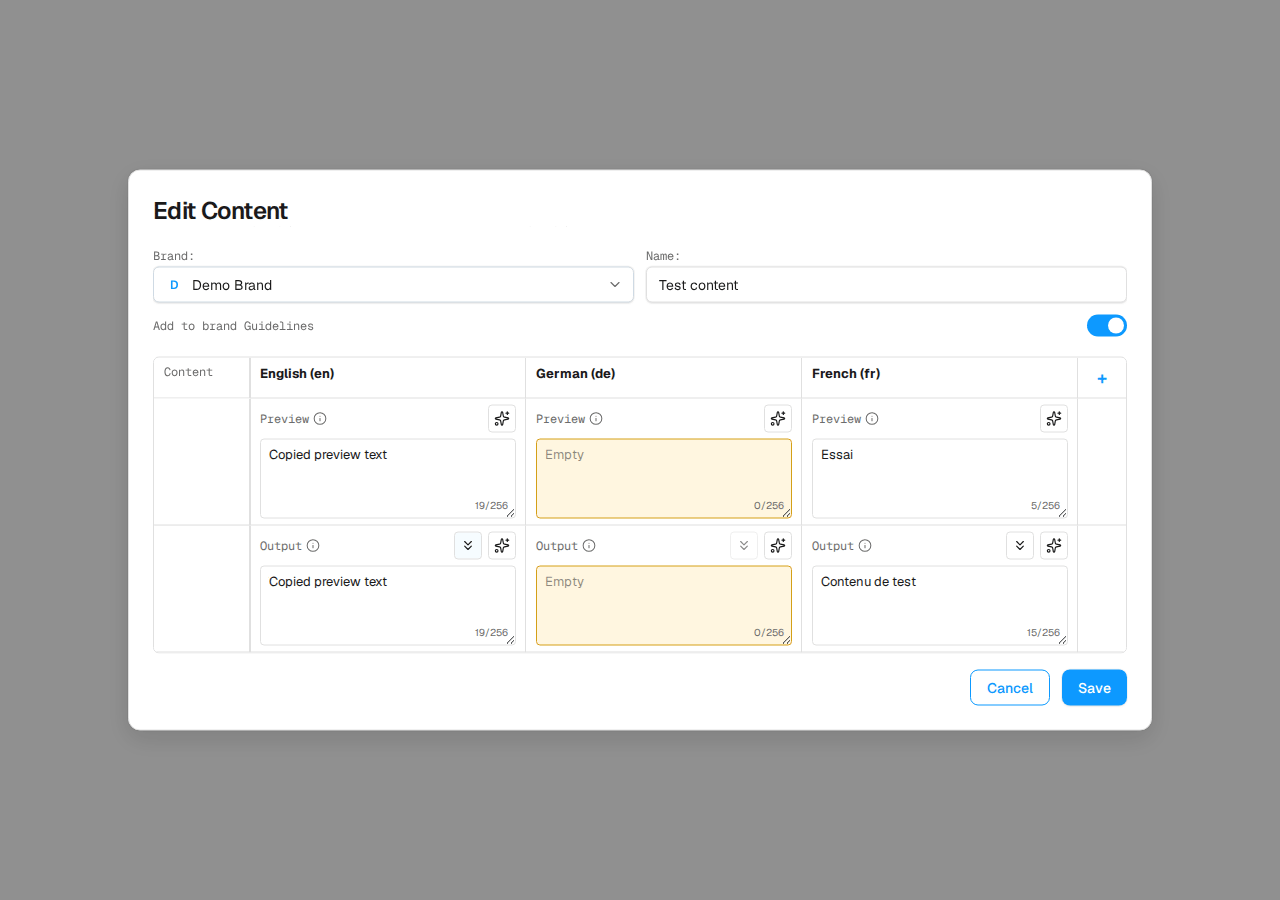
- Check the Brand and Name. Optional: turn on Add to Brand Guidelines.
- Click the blue + and pick a language, for example French.
- Fill in Preview and Output for that language. Each language has its own column.
- Save.
Good to know
- To remove a language, click the × on its column. You’ll be asked to confirm if it has copy. You can’t remove the starting language.
- To copy a language’s Preview into its Output, use Copy from Preview (the double-chevron icon) on the Output toolbar.
- You still insert the item once. You don’t need separate items such as “Button · EN” and “Button · FR”.
- In an email, switch the language chip (for example en to fr) to see that language. If a language is missing, the email shows the starting language until you add it.
- Adding a language to an email keeps your Content linked, so later changes still come through.
- Adding languages to an item doesn’t count as an extra item towards your free trial.