

Change number fields in Settings
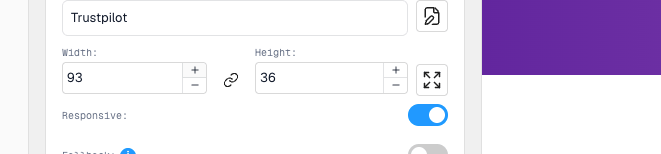
Number fields in Settings, such as width, height, padding and radius, have + and − buttons so you can adjust values without typing.Before you start
- Open an email in the builder.
- Select something with number fields, for example an image with Width and Height.
Steps
- Open the Settings tab.
- Find a number field, such as Width or Height.
- Click + or − once to change the value by one step.
- To keep changing it, click and hold + or −. Let go when you reach the value you want.
- Or type a number straight into the field.
Good to know
- Some fields have a minimum and maximum. The value stops when it reaches them.
- When Width and Height are linked (the link icon between them), changing one changes the other so the image keeps its shape. Background images work the same way. See Keep a background image in proportion.